



The corporate event landscape has shifted. Your audience may be distributed across three time zones, joining live and asynchronously. The gap between "just recording" and "professional broadcast" determines whether your event reaches 150 people or 15,000—whether attendees engage or click away during buffering.
This guide covers what actually happens behind the broadcast, how to evaluate platform options, and the technical decisions that separate amateur streams from productions that reflect your organization's credibility.
Live Streaming vs Recording
These are not the same thing, though people often conflate them.
Recording captures footage locally to storage media—hard drives, SSDs, memory cards. bb Blanc's production team has extensive experience in this area. It's self-contained. Quality depends on camera, lighting, and codec settings. You can edit it later.
Live streaming encodes video and audio in real time, compresses it, sends it across the internet to a CDN (content delivery network), and serves it to multiple remote viewers simultaneously. This introduces latency (typically 5-60 seconds depending on protocol), requires consistent bandwidth, and demands fallback systems if your connection fails.
The technical demands are different. Recording asks: "How do we capture this well?" Live streaming asks: "How do we reliably send this to 500 concurrent viewers in multiple countries without buffering or loss?"
Many Toronto organizations host events where some attendees are on-site and others are remote. This is hybrid production, and it requires both capture quality and streaming infrastructure. You need camera operators managing live cuts, audio engineers mixing for the stream, and a control room monitoring connection health, bitrate stability, and viewer analytics.
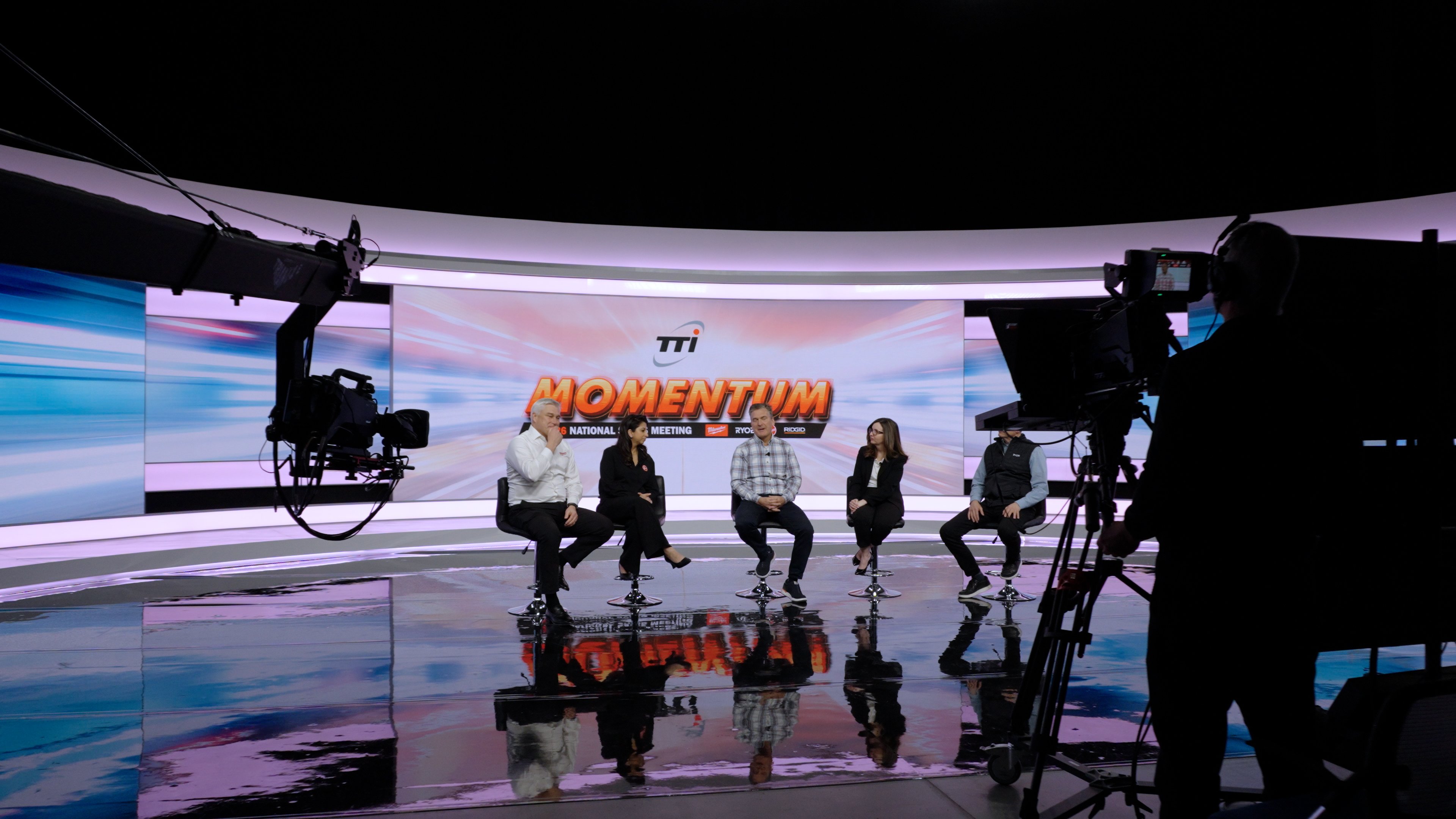
Professional live streaming in Toronto requires the same level of AV production Toronto expertise as any in-person event. Your conference AV Toronto setup must account for both the room and the remote audience simultaneously. The encoding, switching, and graphics workflows that make a stream feel polished are built on the same technical foundation as traditional broadcast production.
Technical Requirements
Encoding and Bitrate
Live streaming video must be compressed in real time. Your source camera outputs, say, 100 Mbps. You can't send that to the internet. You encode it down to 5-8 Mbps (or adaptive variants from 2.5 to 12 Mbps) for stable, watchable playback.
Encoding happens via hardware encoder (dedicated device like a Blackmagic ATEM or LiveU) or software encoder (OBS, Wirecast running on a laptop). Hardware encoders are more reliable for mission-critical events; software encoders are flexible and often sufficient for internal events or smaller audiences.
Resolution and frame rate matter: - 1080p60 (1920×1080 at 60 fps) is industry standard for professional events. Looks smooth, handles motion well, viewers expect it. - 4K sounds impressive but requires 20-30+ Mbps bitrate. Most streaming platforms cap at 1080p anyway. Save the bandwidth. - 1080p30 works for talking-head content, panels, presentations. Less suitable for live performances or sport-style coverage.
Typical bitrate targets: - 1080p60: 8-12 Mbps - 1080p30: 4-6 Mbps - Adaptive bitrate: 2.5 Mbps minimum (mobile viewers), scaling to 8+ Mbps for strong connections
Bandwidth and Connection Redundancy
Upload bandwidth is your constraint. Your event space may have fast download (good for attendees video conferencing in), but upload is often limited. A 1 Mbps upload pipe can't handle a 6 Mbps stream.
Pre-event checklist: - Test your connection: Run upload speed tests (ookla.com/speedtest). You need 1.5× your target stream bitrate as minimum, ideally 2× for safety. - Hardwire the encoder: Wifi is unreliable for streaming. Use ethernet. If the venue's ethernet is flaky, run a hardline or use a high-quality 5GHz connection with redundant backup (failover modem). - Plan for failure: Single internet connection = single point of failure. Professional setups use: - Primary: Venue broadband (cable or fiber) - Secondary: Cellular backup (4G/5G bonded connection or separate modem) - Tertiary: Mobile hotspot as emergency fallback
Failover switching should be automatic (your encoder detects connection loss and switches to secondary without viewer interruption, ideally).
CDN and Delivery
Your stream goes to a CDN (Akamai, Cloudflare, AWS CloudFront, etc.). The CDN caches your content and serves it from servers geographically close to viewers. This reduces latency and buffering.
Choose your platform—YouTube, LinkedIn, Vimeo, or branded player—and they typically handle CDN infrastructure. You provide the stream; they distribute it.
Protocol options: - RTMP (Real Time Messaging Protocol): Traditional, industry standard. Low latency, good compatibility. Most streaming platforms accept RTMP ingest. - HLS (HTTP Live Streaming): Modern, adaptive. Better for variable bandwidth. Slightly higher latency (10-30 sec). Works on all devices. - DASH (Dynamic Adaptive Streaming over HTTP): Newer, similar to HLS. Less universal support but improving.
For corporate events, RTMP remains the standard ingest protocol. Your encoder sends RTMP to your platform, which transcodes to HLS/DASH for delivery.
Audio Considerations
Audio quality matters more than video to most viewers. A bad audio stream makes people leave, even if video is crystal clear. This is why bb Blanc's production teams prioritize professional audio mixing for every live stream.
- Balanced audio inputs: Use XLR cables with proper impedance (mic level, not line level). Avoid long runs without buffering.
- Mic techniques: Lavalier (lapel) mics for speakers, hand-held for Q&A, ambient mics for venue sound.
- Mix levels: Peak at -6 dB (leave headroom), average around -12 to -18 dB. Audio that distorts or clips at high moments sounds unprofessional.
- Monitor mix: On-site attendees may need audio from remote speakers. Send a separate monitor mix to venue PA, not the broadcast feed.
Platform Options
Your choice of platform shapes the viewer experience, analytics, and interactivity.
YouTube Live
Strengths: - Free to stream (no viewer limit). - Global reach. bb Blanc's production team has extensive experience in this area. Most people already have YouTube accounts. - Strong analytics (viewer count, average watch time, engagement rate). - Easy embed on your website.
Limitations: - Limited branding control (YouTube logo, color scheme applies). - Moderation of chat can be reactive, not proactive. - Monetization is an option, but adds complexity. - Live chat can become unwieldy in large events.
Best for: Public events, large audiences, wide reach priority.
LinkedIn Live
Strengths: - Professional context. Viewers are often decision-makers. - Strong for B2B events, thought leadership. - Restricted access (invitation-only) available. - Strong analytics for professional engagement.
Limitations: - Fewer concurrent viewers (500-100,000 depending on account tier). - Lower discoverability than YouTube. - Chat is less feature-rich than YouTube.
Best for: Professional development, industry conferences, executive content.
Vimeo Live
Strengths: - Strong branding control (embed player, custom colors, your logo). - Viewer authentication (login required, IP restrictions available). - Good analytics, reliable platform. - Integrates with Vimeo's video management.
Limitations: - Requires subscription; not free. - Smaller audience than YouTube, but more controlled. - Setup slightly more complex for technical novices.
Best for: Private events, internal company streams, white-label needs, professional production.
Branded Player (Your Website)
Strengths: - Full control over branding and user experience. - No third-party platform rules or moderation policies. - Data stays on your servers. - Custom analytics integration.
Limitations: - Requires technical setup (streaming server, CDN account). - You handle moderation, chat, backup systems. - Smaller audience reach (people don't discover you via platform algorithm).
Best for: Internal events, sensitive content, maximum customization.
Decision Matrix
| Platform | Public? | Branding | Audience Size | Analytics | Chat Features |
|---|---|---|---|---|---|
| YouTube | Yes | Low | Highest | Excellent | Moderate |
| Yes/No | Moderate | Medium | Good | Moderate | |
| Vimeo | Yes/No | High | Medium | Good | Moderate |
| Branded | No | Highest | Varies | Custom | Custom |
Multi-Camera Production
Static single-camera streams feel small. Multi-camera production creates visual interest, allows cuts between speakers and presentation materials, and feels "broadcast-quality."
Camera Setup
Three-camera standard for conference/panel: - Camera A (Wide/Establishing): Wide shot of entire stage, audience visible. Establishes context. - Camera B (Speaker Close-up): Medium-tight shot of active speaker. Used for talking heads, high-emotion moments. - Camera C (Slides/Lower-third): Tight shot of presentation slides, graphics, lower-third text overlay. Or: audience reaction shot during key moments.
Audio camera: One camera has the primary audio input (mixer output). Others are video-only (or have ambient audio for redundancy).
Switching and Vision Mixing
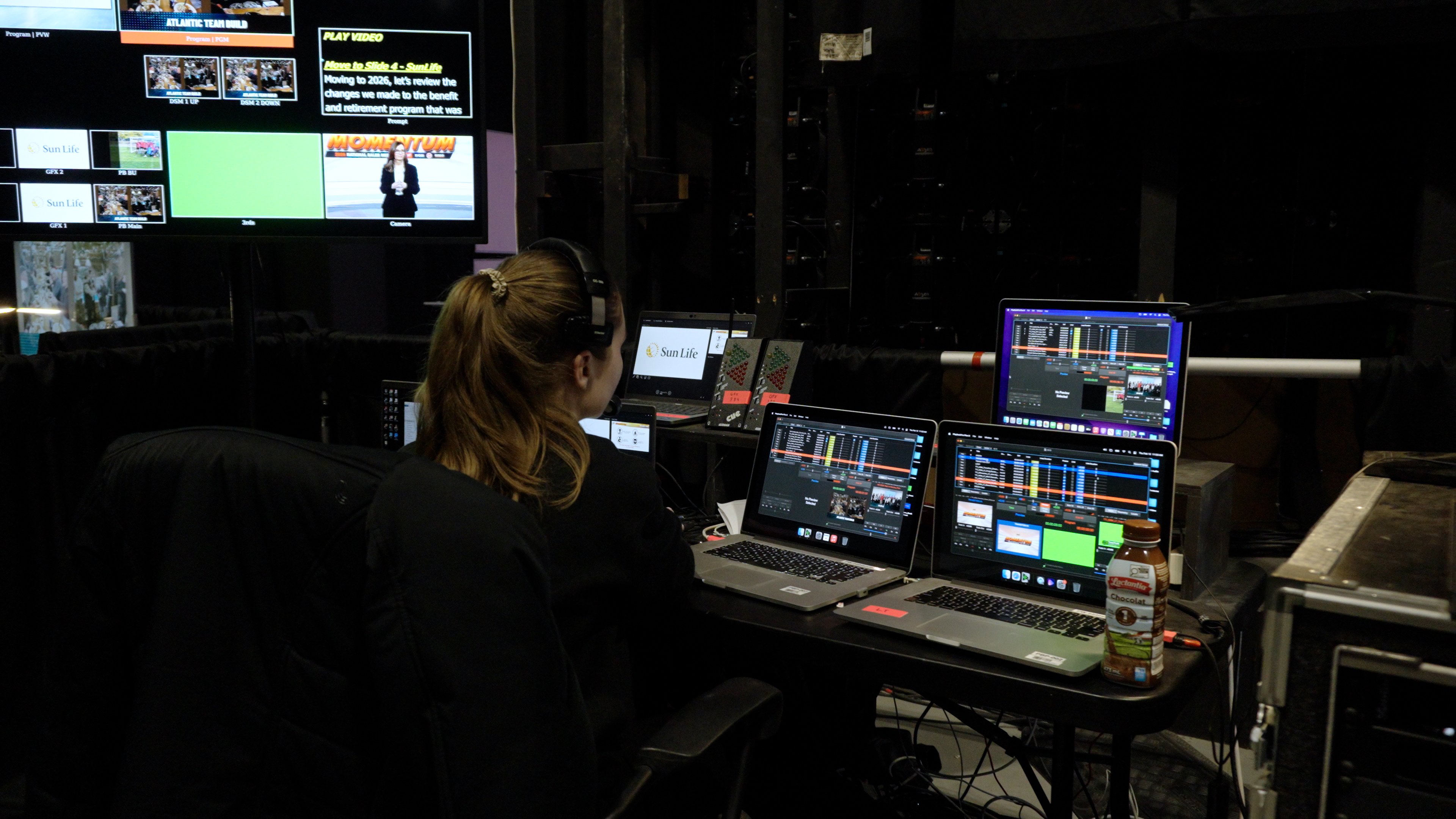
A vision mixer (switcher, like Blackmagic ATEM Mini or ATEM 2 M/E) takes multiple camera inputs and outputs a single program feed to your encoder.
The technical director (vision mixer operator) watches the speaker, presentation, and live comments, and makes real-time cuts: - Speaker intro: Wide shot. - Speaker talking: Close-up. - Speaker shows slide: Cut to slide camera. - Q&A audience question: Quick wide shot, then back to answering speaker.
Professional events hire a dedicated vision mixer. Smaller events might task an AV technician with both audio mixing and vision mixing (workable, but demanding).
Camera Movement
Static cameras are fine. Movement (pan, tilt, zoom) should be: - Slow and purposeful: A 5-second pan from left to right looks professional. A jittery zoom to audience members looks amateurish. - Pre-planned: Don't freestyle camera work during live stream. Rehearse moves. - Minimal during cuts: Movement during a live cut to a different camera is invisible, but movement on a static shot is visible. Keep it smooth.
Motorized pan-tilt heads (PTZ cameras) can be programmed for specific presets and movements, reducing operator workload.
Remote Speaker Integration
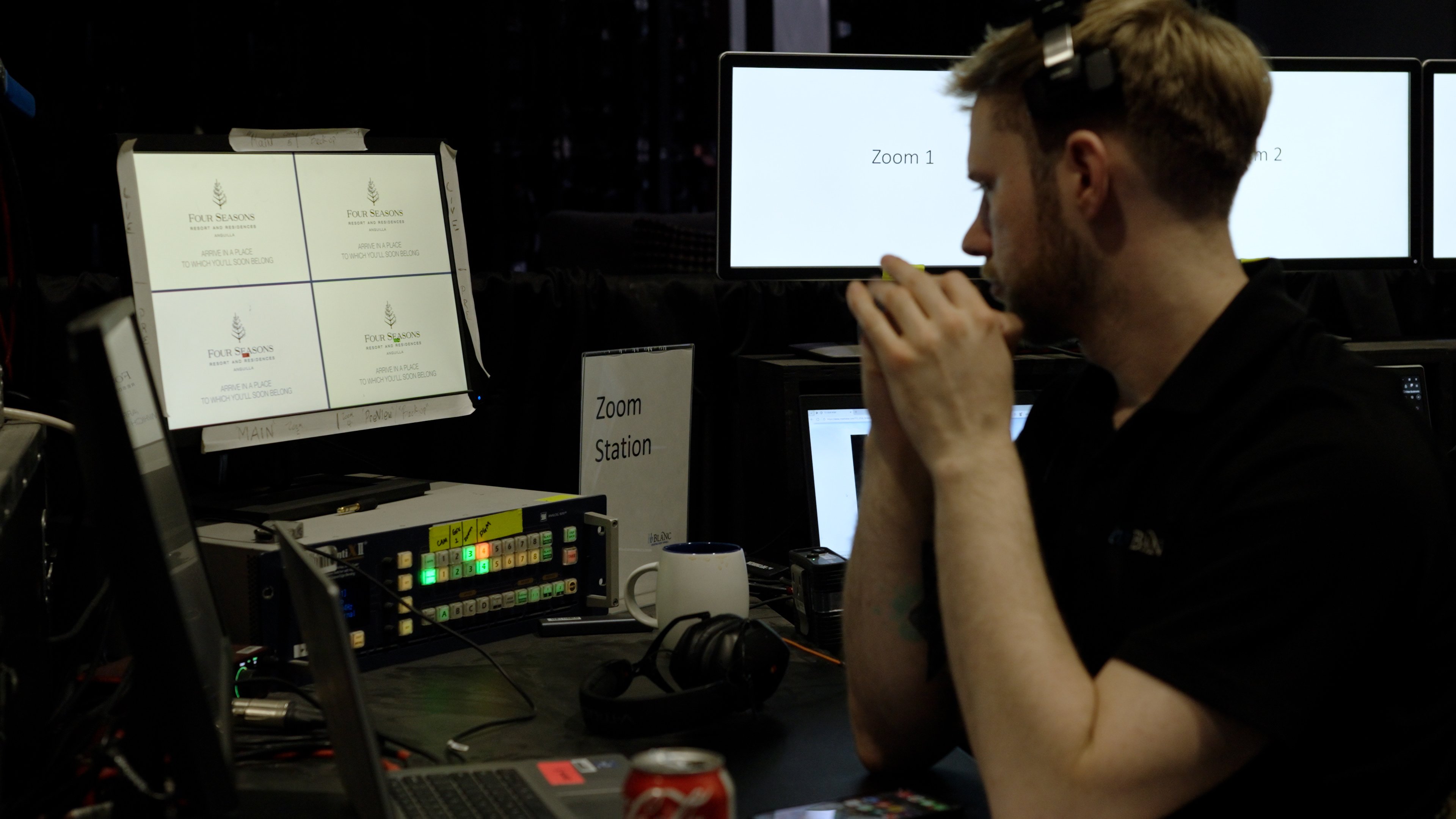
Hybrid events often include remote speakers dialing in via Zoom, Teams, or a dedicated RTMP connection.
Video Quality Considerations
If your remote speaker is via Zoom: 1. Their video comes into your system at Zoom's compressed quality (typically 1-2 Mbps). 2. You're limited by their bandwidth, camera quality, and Zoom's codec. 3. Displaying their video in your stream means you're streaming compressed video, which looks softer than on-site camera.
Mitigation:Request remote speakers use good lighting, camera position (eye level), and a solid background. A blurry remote speaker looks worse than a clear local speaker. - Use a dedicated Zoom computer (not the encoder). One Zoom participant shows their full screen (high-res presentation), other shows their video feed. - Consider a branded graphic or lower-third with speaker name, title, company when cutting to remote video.
Audio Isolation
Critical: Remote speaker audio must come into your mixing console cleanly, not through Zoom's speaker output (which includes Zoom's background noise suppression and compression).
Use a loopback interface (virtual audio cable) or Zoom RTMP input to extract the remote speaker's audio directly into your console. This gives you: - Cleaner audio (less compression). - Control over levels without adjusting Zoom settings. - Ability to mix their audio with on-site ambient sound.
Latency Management
Zoom adds 200-800 ms of latency depending on connection. Your remote speaker sees the on-site event delayed. This can be awkward during live Q&A—they may answer a question that was already answered, or respond to something out of context.
Workaround: Have an on-site moderator manage Q&A, reading questions to remote speakers and managing timing. Alternatively, use a chat for all questions (synchronous, smaller latency impact).
Audience Interaction
Live streams can be passive (viewers just watch) or interactive (viewers participate, ask questions, react).
Live Chat
Platforms like YouTube and LinkedIn offer built-in chat. Moderation is critical.
Best practices:
Pre-moderate or close chat: For internal events or sensitive content, disable public chat. Use Slack or Teams for attendees instead. - Assign a moderator: Someone watches chat in real time, removes spam/inappropriate comments, flags good questions for Q&A. - Highlight valuable comments: Some platforms allow "pinning" comments or highlighting them. Do this for thoughtful questions.
Q&A Segments
Structure Q&A clearly: - Submitted questions: Attendees submit via chat or a form (Slido, Mentimeter). Moderator selects best questions. - Live questions: Open mic for in-venue attendees; remote attendees submit via chat. - Time management: Allocate 10-15 minutes for a 60-minute event. Longer Q&A loses engagement.
Polls and Surveys
Integrate a polling tool (Slido, Mentimeter, Kahoot) to gather real-time feedback, create engagement moments, and generate on-screen visuals.
Display options:Show poll results live on stream (creates visible audience engagement). - Close poll, display results, discuss findings. - Use polls to break up presentation monotony (every 15-20 minutes, a quick poll).
Reaction Mechanisms
YouTube Live offers emoji reactions. LinkedIn has reaction emojis (like, love, etc.). These are passive but create a sense of collective viewing.
For professional events, consider custom reaction graphics (company branded thumbs up, for example) as an alternative.
Archiving and Post-Event Content
The stream ends, but the content's value continues.
Local Recording
Always record locally. Your encoder should output both stream and local file simultaneously.
Rationale:Platform video goes down? You have a backup. - Need to edit or create highlights? You have high-quality source. - Platform deletes old streams? You retain archival copy. - Lossy streaming codec ≠ loss-less archive. Record locally at high bitrate (10-15 Mbps) for future editing.
Storage: One hour of 1080p60 video at 12 Mbps ≈ 5.4 GB. Plan accordingly.
Platform VOD (Video on Demand)
Most platforms auto-save live streams to VOD (video on demand). YouTube, LinkedIn, and Vimeo all retain streams (unless you delete them).
Settings to configure:
Visibility: Public, unlisted, private, or invite-only. - Monetization: YouTube allows ads; configure if applicable. - Comments: Disable comments on VOD if you disabled them during live. - Chapters: Add timestamps for easy navigation (Introduction 0:00, Speaker A 5:30, Q&A 45:00, etc.).
Highlights and Short-Form Content
Edit the full recording into: - 3-5 minute highlight reel for social media (LinkedIn, Instagram, TikTok). - Speaker soundbites (15-30 sec) for individual promotion. - Q&A excerpts if particular answers are valuable.
Use these assets on your website, in email follow-up, and across social channels. A 1-hour stream rarely gets re-watched; a 4-minute highlight gets shared.
SEO and Discoverability
Post your VOD link on your blog with: - Detailed description (keywords: "live streaming events Toronto," "corporate event," speakers' names). - Transcript or captions (YouTube auto-generates; Vimeo has caption tools). - Links to related articles, follow-up resources, speaker bios.
Google indexes video content and favors content with captions and transcripts.
Ready to discuss your next event? Contact bb Blanc to start the conversation with our production team.
Additional Considerations: Scaling Live Streams
Concurrent Viewer Limits
Most platforms handle 1,000+ concurrent viewers on standard accounts. Premium accounts (YouTube Partner, LinkedIn Premium) can scale to 100,000+. But platform capacity isn't your constraint—your internet connection is.
Upstream bottleneck: Your uplink bandwidth determines maximum stream bitrate. If you have 10 Mbps upload and you're sending 8 Mbps to the platform, you have 2 Mbps margin. Lose margin, stream degrades for all viewers.
Parallel streams: If you're streaming to YouTube AND LinkedIn simultaneously, you're sending the same 8 Mbps to two destinations. This requires either: 1. Two separate internet connections (one per platform), or 2. One connection split between platforms (risky if connection drops; both streams die).
Professional approach: Use a streaming multiplexer (like Wowza, Nimble Streamer, or your encoder's native capability) to ingest one stream and simultaneously push to multiple platforms. This way, one connection handles all outputs.
Interactive Streaming (Audience Participation)
Beyond chat and reactions, some events offer richer interactivity:
Slido integration: Polls, Q&A, word clouds live on stream. Results visualized in real time. Audiences see peers participating (engagement fuel).
Stream chat as production input: Moderator reads chat questions aloud during event. Gives remote viewers sense of voice and participation.
Breakout rooms: Zoom allows breakout rooms for small-group discussion during event. Attendees can move between rooms. More intimate than main stream.
Interactive buttons/CTAs: YouTube, Vimeo, and some platforms allow clickable CTAs in stream (subscribe, visit link, take survey). Drives traffic and action from stream.
Streaming on Unreliable Connections
What if your venue internet is flaky? Options:
Bonded connection: Combine multiple connections (cellular + broadband) into single stream. If one fails, stream continues on the other. Equipment: Teradek Link Flow, LiveU Solo, Acceris WayFlyer. Cost: varies-800/day rental.
Low-bitrate streaming: Stream at lower bitrate (2-4 Mbps instead of 8 Mbps), requiring less total bandwidth, leaving more margin for network jitter. Tradeoff: Visual quality suffers, but stream stability improves.
Offline buffering: Buffer some content locally before streaming. If connection is interrupted, buffer carries you through brief outages. Small buffer (5-30 seconds) is transparent to viewers. Most modern encoders offer this as standard feature.
Graceful degradation: Inform viewers if connection is struggling. "We're experiencing internet issues; quality may dip temporarily." Transparency beats viewers wondering if it's their connection. Many platforms allow chat notifications and banner messages.
Advanced Camera Techniques for Remote Viewers
Multi-camera streaming isn't just about switching angles; it's about storytelling.
Camera placement for psychological comfort: - Speaker close-up (Camera B): Head-and-shoulders framing builds connection. Viewers "see" the speaker as if in conversation. Use for emotional moments, passion, authenticity. - Wide shot (Camera A): Establishes context. Where is the speaker? What's the environment? Use for introductions and transitions. - Slide camera (Camera C): Tight framing on presentation slides. But don't frame it like a document; frame it dramatically (slightly angle, good lighting, zoomed appropriately so text is readable).
Movement and pacing: - Slow push-in: Subtle camera move toward speaker builds intimacy over 5-10 seconds. Works well during emotional narrative. - Pan between speakers: Smooth, 3-4 second pan from one speaker to another during panel transitions. Feels natural, not jarring. - Depth perception: Vary depth throughout program. Close-ups followed by wides prevent visual monotony.
Lower-third graphics and overlays: - Speaker identification: Name, title, company. Display for 10-15 seconds at first appearance. - Key points: During slides, display one key statistic or quote as lower-third text. Reinforces message. - Time/countdown: For time-sensitive elements (voting, special announcement), countdown timer visible on-screen builds anticipation. - Branding: Subtle company logo, event hashtag, or social media handle in corner. Consistent brand presence without distraction.
Viewer Experience Metrics Worth Tracking
Beyond raw viewer count, these metrics tell you if your stream is working:
Engagement: - Concurrent viewers during program: Did you hold audience, or did they drop off? Compare live viewers to peak concurrent to see engagement decay. - Average watch duration: If 500 people start watching and only 200 stay to end, engagement is weak. Analyze: What happened at the 50% mark? - Chat message volume: Active chat = engaged audience. Spikes in chat correspond to high-emotion moments. Correlate chat volume with content for insights. - Polling response rate: If you offer polls, what % respond? Low response (under 30%) indicates low engagement. High response (60%+) indicates high engagement.
Technical health: - Stream uptime: 100% = perfect. 99%+ = acceptable. Below 98% indicates reliability issues. - Bitrate stability: Is your bitrate constant or fluctuating wildly? Fluctuation indicates connection issues. - Rebuffer/stall events: How often do viewers experience buffering? Goal: under 1% of viewers experience stalls. - Average bitrate served: Are viewers getting full quality, or are they downscaled due to network constraints? If 50% of viewers on mobile getting 2 Mbps vs 8 Mbps on desktop, adaptive streaming is working correctly.
Track these via platform analytics (YouTube, LinkedIn, Vimeo all offer this data). Use data to improve future streams.
Post-Stream Engagement
After stream ends, engagement doesn't stop if you plan well:
Immediate follow-up: Email within 24 hours. "Here's the recording." "Download the slides." "Answer our quick survey." Response rate is highest in first 48 hours.
Segmentation: Did remote viewers watch live or on-demand? Did they watch full stream or skip around? Segment your follow-up. - Live viewers: "Thanks for attending live! Here's exclusive post-event content." - On-demand viewers: "You watched the session; here's related resources." - Skip-arounders: Identify which segments they watched and send relevant follow-up.
Continued nurture: Stream recording is now an asset. It drives evergreen value: - Add to resource library on your website. - Link from related blog posts. - Email to future prospects (nurture sequence). - Repurpose audio as podcast episode.
Multi-Event Streaming Strategy
If you're streaming multiple events (series, monthly webinars), build a system:
Standardized setup: Same camera positions, same encoder settings, same platform. Reduces setup time and mistakes.
Consistent branding: Same intro graphic, same lower-third design, same color palette. Builds brand recognition across series.
Library management: Archive all streams in organized folder structure (by date, topic, speaker). Make searchable and discoverable.
Promotion cadence: Each new stream announcement includes links to previous streams. Drives viewership from back catalog.
ROI tracking: Tag each stream with source/campaign. Track which streams drive leads, which drive engagement. Inform future streaming decisions.
Next Steps
Live streaming scales your reach beyond the room. Technical execution—encoder stability, audio quality, camera work, platform choice—determines whether your audience experiences professionalism or frustration.
The difference between a stream that feels professional and one that feels amateur is often not the equipment; it's the attention to detail. Proper bitrate for connection. Audio levels that don't distort. Cameras that are in focus and positioned for storytelling. Platforms that are properly configured.
When you invest in live streaming, you're not just capturing an event; you're extending its lifecycle. The stream, the recording, the highlights, the soundbites—these assets serve your business for months or years after the event itself ends.
Related resources: - Professional hybrid event production services - How to Plan Audio Visual for Corporate Conferences in Toronto - Event Production Company Toronto: How to Choose a Partner - Audiovisual Production Services

