



A conference lives or dies by its technical foundation. A keynote speaker can't be heard. A demo video lags. Remote participants drop off. The content the entire event was built around—lost in poor execution.
We've worked on hundreds of corporate conferences in Canada. The pattern is consistent: organizations that treat AV as an afterthought experience chaos. Organizations that plan technical setup as strategically as they plan agenda items run smoothly.
This guide walks through every technical checkpoint you need—from initial venue assessment through day-of show calling. Whether your conference is 100 people in a single room or 2,000 people across multiple breakout sessions, these fundamentals apply.
For organizations planning conference AV Toronto events or conference production Canada-wide, the technical foundation determines whether your audience stays engaged or checks out. Working with a trusted AV production Toronto partner ensures your conference runs smoothly from load-in to strike. Whether you need corporate AV Toronto expertise for a single-room session or corporate AV production Canada capabilities for a multi-city tour, the checklist below applies.
Why Conference AV Deserves Its Own Strategy
Most corporate events fit a standard template: speakers, presentations, transitions between sessions. But conferences have unique technical demands that commodity AV setups don't address.
Conferences require continuous technical coordination. Unlike a gala (which has scripted moments) or a product launch (which has a finite program), conferences run for 8-12 hours with multiple speakers, presenters, and sessions happening simultaneously or in sequence. One audio failure affects all downstream sessions.
Conferences demand accessibility and inclusivity. You have in-person attendees, remote participants via video conferencing, and possibly interpreted languages (ASL, French, Spanish). The technical infrastructure needs to accommodate all three.
Conferences integrate complex content sources. Speakers bring their own laptops, network bandwidth gets strained by hundreds of simultaneous connections, and video playback needs to be flawless because it's core to the messaging.
Conferences are information-dense. Attendees are taking notes, capturing photos, and absorbing data. Poor audio or visibility isn't just uncomfortable—it's wasteful. They came to learn something.
A professional conference AV setup acknowledges these realities. It means treating technical planning as a core part of agenda development, not something to figure out two weeks before. Understanding conference AV setup requirements is essential for delivering a smooth experience to attendees.
Pre-Event AV Assessment
Before you buy or rent a single piece of equipment, you need to understand what your venue actually supports. This is where most conferences stumble.
The Venue Walkthrough
Visit the venue in person with your AV team. Don't rely on floor plans or the venue's own AV description. You need to assess:
Sightlines and Audience Configuration - From the furthest seat in the room, can attendees see the main stage? Can they see secondary screens? - Are there pillars, columns, or architectural features blocking views? - Is the room wide and shallow, or deep and narrow? This determines screen size requirements and speaker placement. - Are there balconies or raised seating? If so, sight lines become more complex.
Walk the room from multiple audience positions. Sightline problems that seem small in a floor plan look very different when you're standing where attendees will sit.
Ceiling Height, Rigging, and Structural Points - What's the ceiling height? Can you rig lighting or projection systems, or must everything be on stands? - Are there structural points (trusses, beams) where equipment can be hung? What's the weight limit? - Where are electrical circuits and can you run conduit? Are there accessible cable trays or pathways? - What's the load-bearing capacity of the floor if you're using heavy equipment on the ground?
For projection or LED video walls, ceiling height and rigging determine what's possible. A 12-foot ceiling venue requires different equipment than a 20-foot venue. This can't be guessed from a floor plan.
Power Infrastructure - Where are electrical circuits and what's their capacity? - Are there sufficient outlets at the stage? In the AV closet? For lighting positions? - Does the venue have a main power panel you can access for high-load equipment? - Are backup power systems (generators, UPS) available if needed?
Power constraints often limit equipment choices. If your venue has only 30 amps of available power and you're planning LED displays that draw 40 amps, you have a problem. Finding this in the planning phase, not the load-in phase, is critical.
Audio Characteristics and Acoustics - Is the room naturally reflective (tile, concrete, glass) or sound-absorbing (carpet, soft furnishings)? - How do sound waves travel in the space? Are there dead zones or areas where sound builds up? - What's the ambient noise level (HVAC systems, kitchen noise, external traffic)? - Is the room reverberant? Testing by clapping or speaking reveals acoustic behavior that matters for speaker clarity.
Poor room acoustics require more aggressive audio system design—better microphones, strategic speaker placement, possibly acoustic treatment. Rooms with high reverberation need direct sound reinforcement, not just ambient coverage.
Network and Connectivity - Is there a strong Wi-Fi signal throughout the venue? - Can you access the network for hardwired backup systems? - Does the venue provide video conferencing infrastructure, or are you bringing your own? - What's the upstream bandwidth available if you're streaming?
Power Audit and Load Calculation
Create a detailed list of every device you're planning to use and its power draw:
- Projectors: 350-700 watts each
- LED video walls: 2-5 kilowatts depending on size and brightness
- Lighting fixtures: 150-2000 watts per fixture
- Amplifiers and mixing consoles: 100-500 watts
- Video servers and computing equipment: 200-800 watts
- Wireless microphone base stations: 50-200 watts
Add them up. Cross-check against available venue power. If you exceed the venue's capacity, you need to bring a generator or reduce equipment scope.
Oversizing power infrastructure seems excessive until the main LED wall draws more amperage than the venue can provide and suddenly goes dark during your keynote.
Load-in and Setup Timeline
Walk through the load-in timeline with the venue:
- -When can production crew access the space?
- -How long for equipment unload and placement?
- -When do you need to be out? (Some venues have evening events or tight turnarounds.)
- -Are there noise restrictions during setup?
- -Do you need union labor? What's required?
- -Who's responsible for protecting venue infrastructure during load-in?
A compressed load-in timeline (less than 6 hours) means simpler setups or pre-rigged systems. A tight venue turnaround (leaving at 5pm for an evening gala) affects what you can accomplish. Plan accordingly.
Audio Setup for Conferences
Audio is often where conferences fail technically. A great speaker becomes inaudible. Remote participants can't hear. Interpreters lose the source content.
Microphone Selection and Placement
Podium and Speaker Microphones - Use a wireless lapel or headset microphone for podium speakers. It's more reliable and lets presenters move naturally than standing at a fixed lectern mic. - Have a backup wireless microphone for emergencies. If the primary mic dies, you swap it out without skipping a beat. - Use a lavalier (lapel) mic 6-12 inches from the mouth for best pickup. Too close and you get proximity effect (bassy, unnatural). Too far and ambient noise creeps in. - Secure the microphone with a windscreen to reduce handling noise and breath sounds.
Q&A and Audience Microphones - For audience Q&A sessions, use a wireless handheld mic that can be passed to someone raising their hand. - For larger conferences (500+ people), consider radio frequency wireless mics on 2.4GHz with antenna diversity to prevent dropouts. - Always have a backup wireless mic and extra batteries staged and ready.
Simultaneous Interpretation - If you're providing interpreted languages, you need a clear source feed from the podium mic to the interpretation booth. - Interpreters need to hear the speaker in real-time without lag. Latency greater than 500ms makes interpretation nearly impossible. - Provide a dedicated audio line from the mixing console to the interpretation booth, separate from the main PA system.
Speaker Coverage and Placement
Main PA System - Speaker placement depends on room shape and audience distribution. The goal is even coverage without dead zones or excessive echo. - Main speakers typically go at the front near the stage, with delay speakers further back in large rooms to ensure even arrival time and prevent echo. - In a 100-person room, you might need just two main speakers. In a 2,000-person ballroom, you could need four main speakers plus multiple delays.
Confidence Monitors - Speakers need to hear themselves when speaking. A confidence monitor (typically a wedge speaker on the stage facing the presenter) feeds them a mix of their own mic and any backing audio (music, video voiceover). - Don't skip this. A speaker can't deliver well if they can't hear themselves or the cues they're expecting.
Assistive Listening Systems - For accessibility, provide assisted listening devices (wireless receivers) for attendees with hearing loss. - This is required by law in most venues and is the right thing to do. It's also not expensive—usually a few hundred dollars for a wireless system covering a room. - Announce at the start that assisted listening is available and show attendees how to request a device.
Mixing and Monitoring
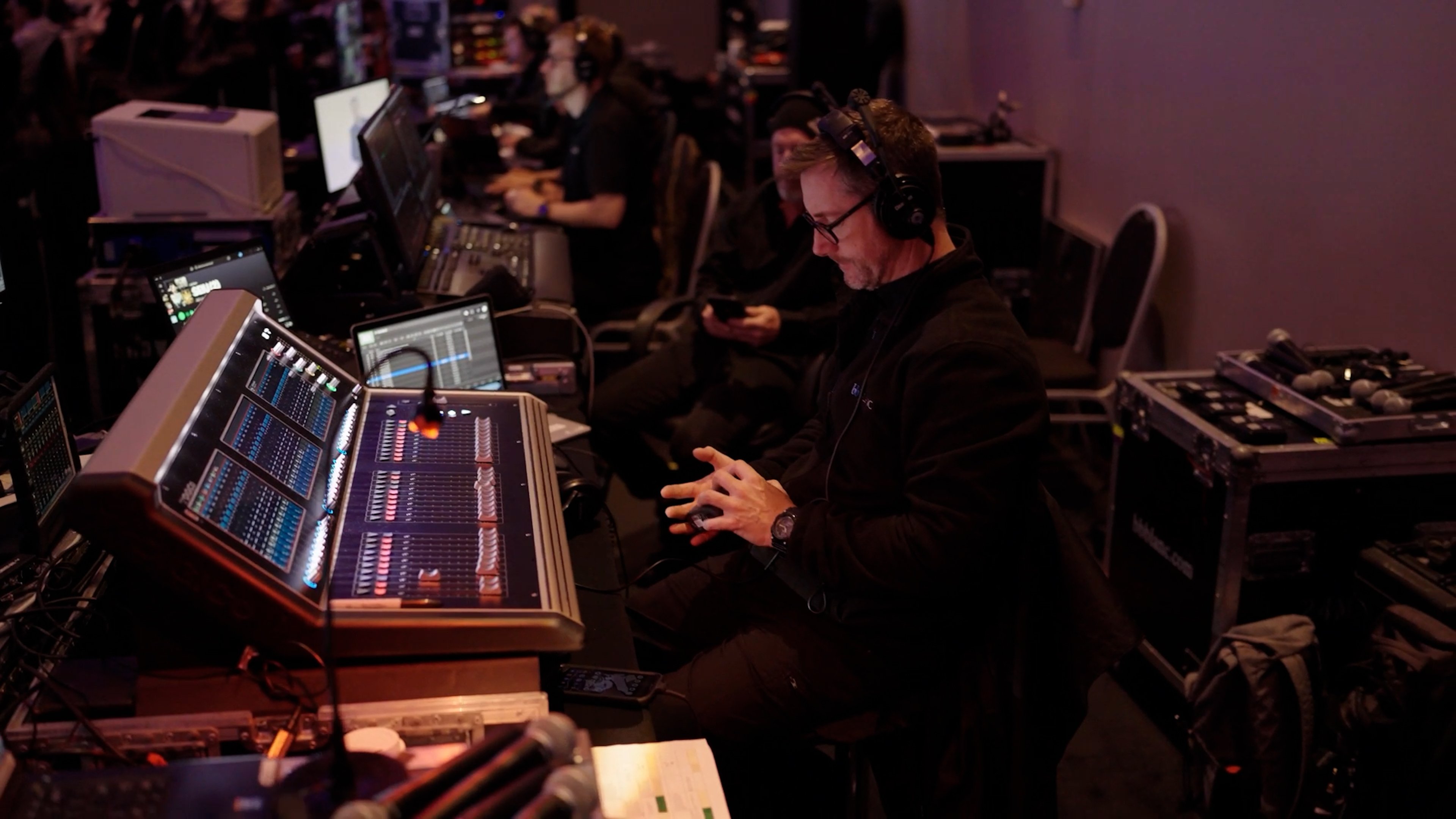
Live Audio Mixing - Have a live audio engineer at a mixing console managing levels, EQ, dynamics, and mixing sources (speakers, backing audio, video voiceover, interpretation booth). - Don't set audio levels at soundcheck and walk away. Real-time mixing responds to room conditions, speaker volume variation, and unexpected audio sources. - The audio engineer should have a clear sightline to the stage or monitor the presentation via a video monitor fed from the stage cameras.
Multiple Audio Feeds - Raw speaker audio needs to go to: the main PA system, confidence monitors, interpretation booth, and streaming server (if you're streaming). - Use an audio snake (bundled cables) from the mixing console to distribute these feeds to different systems. - Label everything clearly so a technician can identify which cable goes where without guessing.
Common Audio Mistakes
Not testing with the room full. Audio levels set with 10 people in an empty room sound different with 500 people absorbing sound. Do a full load-in rehearsal with attendees present if possible, or at least with absorbent materials (chairs, table covers) placed in the room. This is why working with experienced AV production professionals like bb Blanc makes a difference—our team knows how to account for these variables before event day.
Feedback when speakers approach the mic. This happens when the speaker mic is picking up its own amplified signal from the PA speakers. Solution: use a tight pickup pattern microphone, position speakers away from the podium, and use a high-pass filter to cut bass frequencies where feedback often lives.
Unbalanced or too-short cables causing audio dropout. Wireless mics going in and out. Use quality cables, keep runs as short as practical, and use shielded cable to prevent interference.
Insufficient headroom in the mixing console. Leaving only 2-3dB of headroom before clipping. Keep average levels at -12 to -6 dB so you have room for speech peaks and surprises. bb Blanc's audio engineers always maintain proper headroom to prevent distortion during live presentations.
Video and Display Configuration
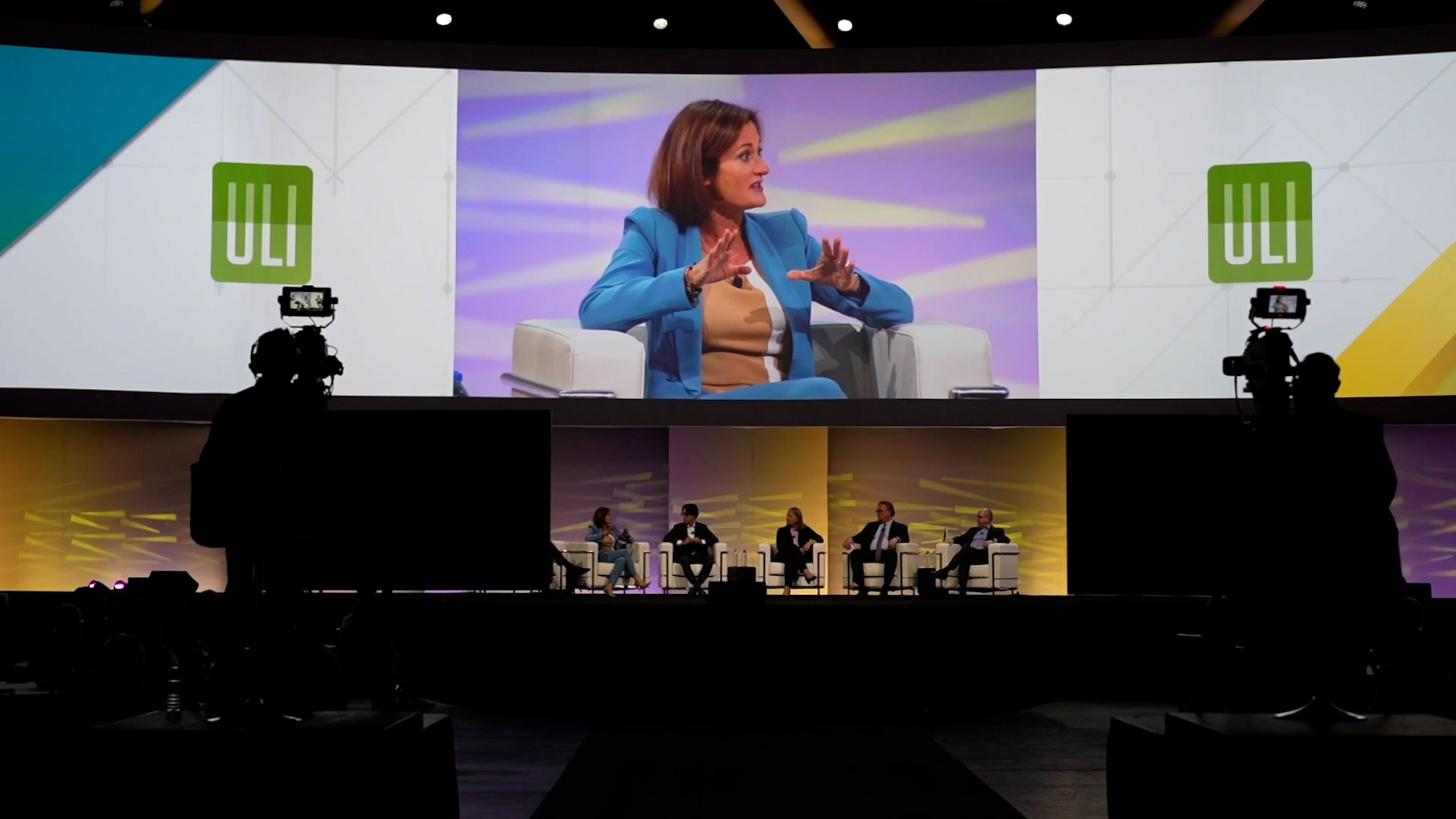
Video in conferences serves multiple purposes: showing slides, playing recorded content, displaying speaker camera (IMAG—Image Magnification), and showing remote participants.
Screens and Projectors vs. LED Displays
Projection Systems Projectors are the standard for most corporate conferences. Advantages: - Familiar to audiences (most conference rooms have them) - Relatively low cost - Easy to integrate with standard presentation software - Good brightness if the room has light control
Disadvantages: - Require a dark room. Bright conference rooms reduce visibility. - Limited color accuracy at high brightness levels - Limited viewing angles (image washes out from the sides) - Setup takes time (aiming, focus, keystoning)
LED Video Walls LED displays are increasingly common for large or high-profile conferences. Advantages: - High brightness (visible even in bright rooms) - Good color accuracy and color uniformity - Wide viewing angles (image is clear from the sides) - Multi-source integration without visible gaps if you're displaying multiple content sources - Professional, modern appearance
Disadvantages: - Higher equipment and installation cost - Require more technical expertise (content formatting, resolution, refresh rate) - Heavier and require rigging infrastructure - More complex to troubleshoot
For conferences under 300 people in a standard hotel ballroom, projection usually makes sense. For 500+ people in a large venue or an event that's broadcast or recorded, LED often makes sense.
Display Sizing and Sightline
Minimum Readable Text - From the furthest seat, attendees should be able to read presenter text on your slides. - Generally, text size of 32 points and above is readable from 50 feet. -A presentation with tiny 10-point text is unreadable beyond the front rows.
Screen Size Calculations - A common rule: the screen width should be no smaller than 1/6 of the viewing distance. So if the furthest viewer is 60 feet away, the screen should be at least 10 feet wide. - For conferences, we usually recommend 1/4 to 1/5 of viewing distance for comfortable viewing without eye strain. - Test visibility from the back row before finalizing screen size.
Multiple Screens - Large conferences often use a center screen and two side screens so viewers from the sides aren't seeing an oblique angle. - Content on side screens typically mirrors the center, or shows supplementary content (speaker camera, Q&A prompts). - Three screens require three video feeds (or one feed split three ways via a video processor).
Video Sources and Switching
Input Management - Attendees will bring their own laptops for presentations. You need a clear system for switching between speakers. - Provide a single HDMI input at the podium. Have backup USB and DisplayPort adapters for different laptop types. - Test each speaker's presentation on your system 24 hours before. Don't wait until 30 minutes before their slot. - Have a "wait" slide or logo slide to show while speakers are connecting.
Confidence Monitors on Stage - Speakers need to see what the audience is seeing (their presentation on screen) to coordinate timing and know when they've moved past a critical slide. - Place confidence monitors at the podium or sides of the stage, angled so the speaker can see without turning their back to the audience. - Feed confidence monitors a clean view of the main content (no speaker camera, no Q&A prompts).
Recording and Streaming - If you're recording the conference, feed all video sources to a recording system. This typically captures the main content screen, speaker camera, and lower-third graphics simultaneously. - For streaming, you need a streaming encoder receiving the same video feeds plus a clean audio mix. - Test streaming bandwidth well in advance. A 1080p video stream at 5 Mbps requires solid upload speeds.
Common Video Mistakes
Assuming laptops will work with your system. They won't, not all of them. Test each speaker's laptop. Bring adapters for every possible connection type (HDMI, DisplayPort, USB-C).
Presentations with poor contrast or tiny text. Your screen is large. That doesn't make a 8-point font readable. Review every presentation 24 hours before the event and request changes if needed.
Video formats and codecs that don't play. If you're planning to show pre-recorded videos, test them on your actual playback system 48 hours before. Some formats (unusual codecs, high frame rates) don't play on standard video servers.
Not having a video technician during live presentation. A live operator should be managing focus, brightness, exposure on speaker cameras and responding to input switches. It's not set-and-forget.
Lighting for Conference Environments
Lighting serves multiple purposes in conferences: illuminating the stage and speakers, creating visual interest, enabling video cameras to capture the speaker clearly, and sometimes reinforcing brand identity.
Stage Lighting Design
Key Light - The primary light source illuminating the speaker's face. Positioned in front and slightly above eye level. - Provides visibility and flatters the speaker's appearance on camera. - Use warm color temperature (3000K) unless branding requires otherwise.
Fill Light - Secondary light reducing harsh shadows from the key light. - Positioned on the opposite side of key light at lower intensity. - Creates an even, professional appearance.
Backlight - Light from behind the speaker, separating them from the background. - Adds depth and makes the speaker visually prominent. - Use a cooler color temperature (5600K) to contrast with warm key light.
Background and Set Lighting - Light illuminating any set pieces, backdrop, or architectural features. - Should be dimmer than speaker lighting so attention stays on the speaker.
Lighting for Video Capture
Conference lighting needs to support quality video. That means:
- Color temperature consistency: All lights should be the same color temperature (3200K tungsten, 5600K daylight, or a consistent mixed temperature). Mixing creates weird color shifts on camera.
- Absence of harsh shadows: Shadows in the background or on the speaker's face look unprofessional on video.
- Even exposure: Speaker's face brightness shouldn't change drastically between front and side angles.
- No backlight glare: Backlights reflecting off the camera lens create lens flare. Position them to avoid the camera's direct line.
Technical Specifications
Lighting fixtures commonly used in conferences: - Fresnel fixtures (500W-2000W): Adjustable beam width, warm tungsten color, good for key and fill positions - PAR cans (300W-1000W): Simple, efficient, good for creating color washes - LED fixtures (60W-600W equivalent): Lower heat, adjustable color temperature, increasingly popular - Gobos and patterns: Custom slides placed in fixtures to project shapes, logos, or patterns on backgrounds
Dimmer and Control - Use a dimmer system so lights can be adjusted during the event without physically moving fixtures. - Program lighting cues into the show so transitions happen smoothly (lights fade up for presentations, dim during videos, etc.). - Have manual override capability so you can adjust if cues need tweaking on the fly.
Lighting Mistakes
Backlighting the speaker, then wondering why they're a silhouette. Backlight is meant to separate the speaker from the background, not replace key lighting.
Using standard ambient ceiling lights thinking that's sufficient. Ceiling ambient lights are often from 12+ feet overhead, creating unflattering shadows under the eyes. Add dedicated stage lighting.
Not testing lighting with cameras. A room can look well-lit to the human eye but terrible on video if fixtures cast wrong colors or create shadows. Do a camera test during load-in.
Forgetting that video cameras are more sensitive to blue light. Lighting that looks warm to the eye appears even warmer (sometimes too yellow) on camera. Test and adjust accordingly.
Connectivity and Streaming Infrastructure
Modern conferences increasingly involve remote participants, hybrid attendance, and streaming. The connectivity layer supports all of this.
Wi-Fi Bandwidth Planning
Capacity Assessment - How many attendees will use Wi-Fi simultaneously? - What will they use it for? (Streaming the presentation, sending emails, video conferencing, social media?) - Typical corporate event: plan for 1.5-2 Mbps per attendee for light use (email, web browsing). Double that for active use (video, streaming, Zoom).
Wireless Network Design - Venue Wi-Fi is often under-provisioned. You may need to bring supplemental access points. - Position access points strategically—not just at the front of the room. - Use a 5GHz band for short-range, high-bandwidth needs (presenting, video conferencing). Use 2.4GHz for range in larger rooms. - Test bandwidth during load-in with simultaneous connections from multiple devices.
Hardwired Backup Systems
For critical feeds (speaker audio, main content video, streaming upstream), never rely solely on Wi-Fi.
- Run hardwired Ethernet from the AV closet to the mixing console, video servers, and streaming encoder.
- Use PoE (Power over Ethernet) for wireless microphones and cameras where possible to eliminate separate power cables.
- Have backup internet (cellular hotspot or secondary ISP) available if primary internet goes down.
Streaming Infrastructure
If you're streaming the conference to remote participants:
Encoding and Bitrate - Plan for 5-8 Mbps upstream bandwidth for a 1080p video stream at good quality. - Use adaptive bitrate streaming if possible so remote participants on slower connections get degraded quality rather than buffering constantly.
Content Sources - Main stage content (slides, speaker camera, graphics) - Audio from the mixing console (clean mix, no ambient room noise) - Metadata: titles, speaker names, presentation flow - Consider separate video and audio feeds so production can adjust mixing in real-time
Streaming Platform and Redundancy - Use a dedicated streaming service (Vimeo Live, YouTube Live, or custom platform) with redundancy built in. - Have a backup streaming encoder and backup internet connection so if primary systems fail, you flip to secondary. - Test the entire streaming pipeline 48 hours before with actual bandwidth and content.
Remote Participant Integration - If remote attendees are participating via video (Q&A, introductions), you need a video conferencing system (Zoom, Teams, WebEx) integrated with the main display and audio. - This is technically complex: audio from Zoom needs to go through your mixing console, video from Zoom appears on your displays, and attendees in the room need to hear and see remote participants. - Plan 2-3 tech rehearsals for this to get it smooth.
Day-of AV Coordination
No plan survives contact with reality perfectly. What separates successful conferences from chaotic ones is how well the technical team coordinates during the event.
Pre-Event Coordination Meeting
The morning of the event, the entire AV team (audio engineer, video operator, lighting operator, stage manager, technical director) should have a 30-minute coordination meeting:
- Review the day's schedule, speaker list, and any last-minute changes
- Walk through the technical cue sheet (when lights change, when videos play, when speakers switch)
- Identify roles and decision authority (who has final say if something breaks?)
- Confirm backup systems and emergency procedures
- Review communication protocols (headsets, hand signals, radio frequencies)
Show Calling and Cue Coordination
A technical director (TD) or show caller runs the event from a central command position (usually the AV closet or control booth). They:
- Call cues for lighting, audio, video, and stage transitions
- Coordinate timing so everything happens in sync
- Solve problems in real-time
- Communicate with all technical teams via headset
Cue sheets should document every technical event: - "Video 1: Product demo plays for 90 seconds, then fade to black" - "Speaker 2 enters stage left as lights come up" - "Interpretation booth receives clean audio feed from podium" - "Streaming encoder records main display"
Each cue should have a trigger (video ends, speaker reaches podium, clock hits 10:35am) and a responsible technician.
Multi-Team Communication
During an event, you may have: - Audio engineer managing mixing console and speaker mics - Video operator managing content playback and camera control - Lighting operator managing dimmer cues - Stage manager coordinating speaker movements and transitions - Technical director calling the overall show - IT support managing streaming and Wi-Fi
All of them need to hear the same cues simultaneously. This happens via a closed intercom system (headsets on a dedicated channel) or hand signals if you're using radio.
Without clear comms, you get chaos. Audio engineer doesn't know video has switched to speaker camera, so they're mixing from the wrong input. Stage manager brings speaker out before lighting is ready. These gaps make events feel amateurish.
Real-Time Problem Solving
Common on-the-fly issues:
- Speaker's wireless mic dies. Swap to backup mic, confirm audio is good, continue.
- Presentation file won't open on the system. Use the "wait" slide, have backup copy of file, continue with confidence monitor showing the speaker what's queued up next.
- Video stream drops on the internet. Switch to cellular hotspot. Check with streaming provider if it's their problem.
- LED display brightness too low. Have operator increase output immediately. Note it for next event.
The technical team should have decision authority within their domain and confidence to make fixes without waiting for approval. Overthinking kills momentum.
Backup Systems and Failover
Professional conferences should have redundancy on critical systems:
- Backup wireless microphones (tested and ready to swap)
- Backup video sources or content files (in case primary laptop fails)
- Secondary internet connection (cellular hotspot)
- Backup projector or spare LED display panels
- Backup mixing console channels (if primary channel fails, flip to backup)
Document your fallback plan: "If main projector fails, secondary projector comes up automatically within 2 seconds. If both fail, we switch to the confidence monitor displayed on a portable screen visible to the front rows."
This gives everyone confidence that a single component failure doesn't kill the event.
At bb Blanc, we've managed conference AV for hundreds of corporate and association events. Our approach combines strategic planning with technical depth—we assess your venue thoroughly, design robust systems with redundancy, and coordinate flawlessly on event day. For hybrid or virtual conferences, explore our hybrid event capabilities through Studio 41. We also specialize in technical management and design that ensures every aspect of your conference runs smoothly—from audio setup to lighting design.

